
Registering device is a tool type used to place the default Registering device element in the scenario.
Registering device element in the scenario logs information related to either fire dynamics simulation, evacuation simulation, or both. For example, people’s evacuation time to the element is measured, or the moment tenability criteria limit is reached – fire hazards on the evacuation paths becoming unendurable for people.
Activating an instrument
To activate the Registering device tool, use one of the following options:
- Click the
 button on the toolbar.
- Select the menu item Tools | Fire | Registering Device.
- Use the keyboard shortcut Alt+H.
To select the default Registering device type, select the  {width=05%} icon in the right pane.

Placing an element
Fenix+ offers several ways to set the registering device:
-
Standalone Registering Device. Install the default (standalone) registering devices to log modeling data along preferred evacuation routes, as well as at locations with spiral staircases. To do so, left-click at the desired location in the topology editor, drag the mouse to set the detector’s length, and left-click again to finish drawing.
-
In the door. For logging modeling data in the door area, instead of using the Registering device instrument, we recommend setting the With registering device option in Door or the Doorway element setting. This way, modeling results will show the object’s name (e.g. “Door 2” as the registering device). Additionaly, the registering device will log data precisely where the object is placed, without data variability of a custom placement, excluding cases like people reaching the door but not walking through it, or an intended “exit” time measured for occupants coming through the door on the opposite side of the placed registering device.
The figures below show a side view and a top view for both options for displaying the Registering Device at the door location. The standard (standalone) registering device is located on the left. The recommended option is shown on the right.
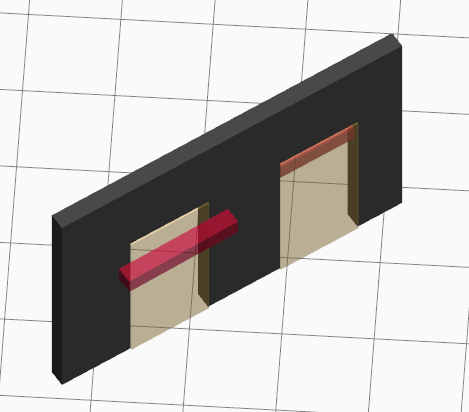 {width=60%}
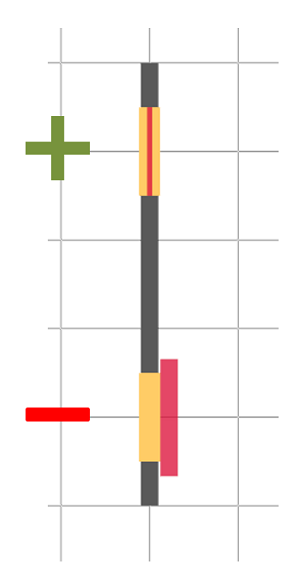 {width=40%}
-
In the stairway. For logging modeling data in the door area, instead of using the Registering device instrument, we recommend setting the With registering device option in the Stairway element setting.
A single registering device for one staircase will be visually displayed at both the bottom and top of the flight.
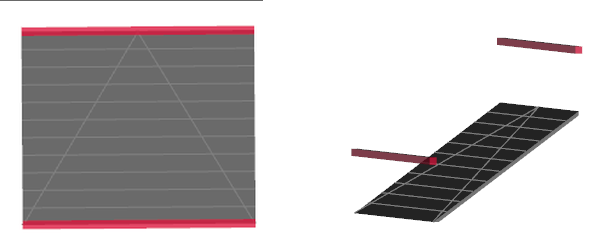
For spiral staircases in Fenix+, the With Registering Device option is not available. Install standard (standalone) registering devices at the locations of spiral staircases.
Modeling results
A registering device placed in the scenario produces the following results after one or multiple modeling processes are finished:
-
Evacuation simulation: a number of people walking through a registering device will be shown, and their respective evacuation time, measured from the moment an occupant left their starting point to the moment they have reached the first edge of the registering device element.
-
Fire dynamics simulation: for each registering device placed in the scenario Fenix+ will create a separate result data point, showing a dynamic of fire hazards measured on the registering device’s topological model. A fire hazard for a registering device reaches its critical value when at least one spot on the topological model reaches it. You can set which fire hazards should be recorded across all types of registering devices (like ASET-Registrator) in Menu > Simulation > ASET/RSET analysis parameters.
-
Evacuation simulation and Fire dynamics simulation: “Comparison of evacuation and fire” section in the Results tab will show values necessary to perform an ASET/RSET analysis. Compared are the Registering device’s time when fire hazards reached its critical values and evacuation time.
Both Evacuation simulation and Fire dynamics simulation will be processed after starting ASET/RSET calculation.
Parameters
The ASET-registering device has the following unique parameters:
- Critical Visibility — the critical value of the “Visibility” fire hazard, set exclusively for this placed element. By default, a “Visibility” value for all registering devices (and ASET-registrators) is set in ASET/RSET analysis parameters (Menu > Simulation > ASET/RSET analysis parameters).
General parameters, similar to the Solid object elements in Fenix+. Available after placing an element and selecting it:
- Level — level above the ground, crucial for determining if the occupant models are reaching the registering device’s model.
- Name;
- Display object name checkmark;
- Visibility checkmark;