
This section
Process of combining topologies from multiple projects:
-
Select a project as a basis for importing other floors.
-
Check if every floor in every selected project has the levels set correctly.
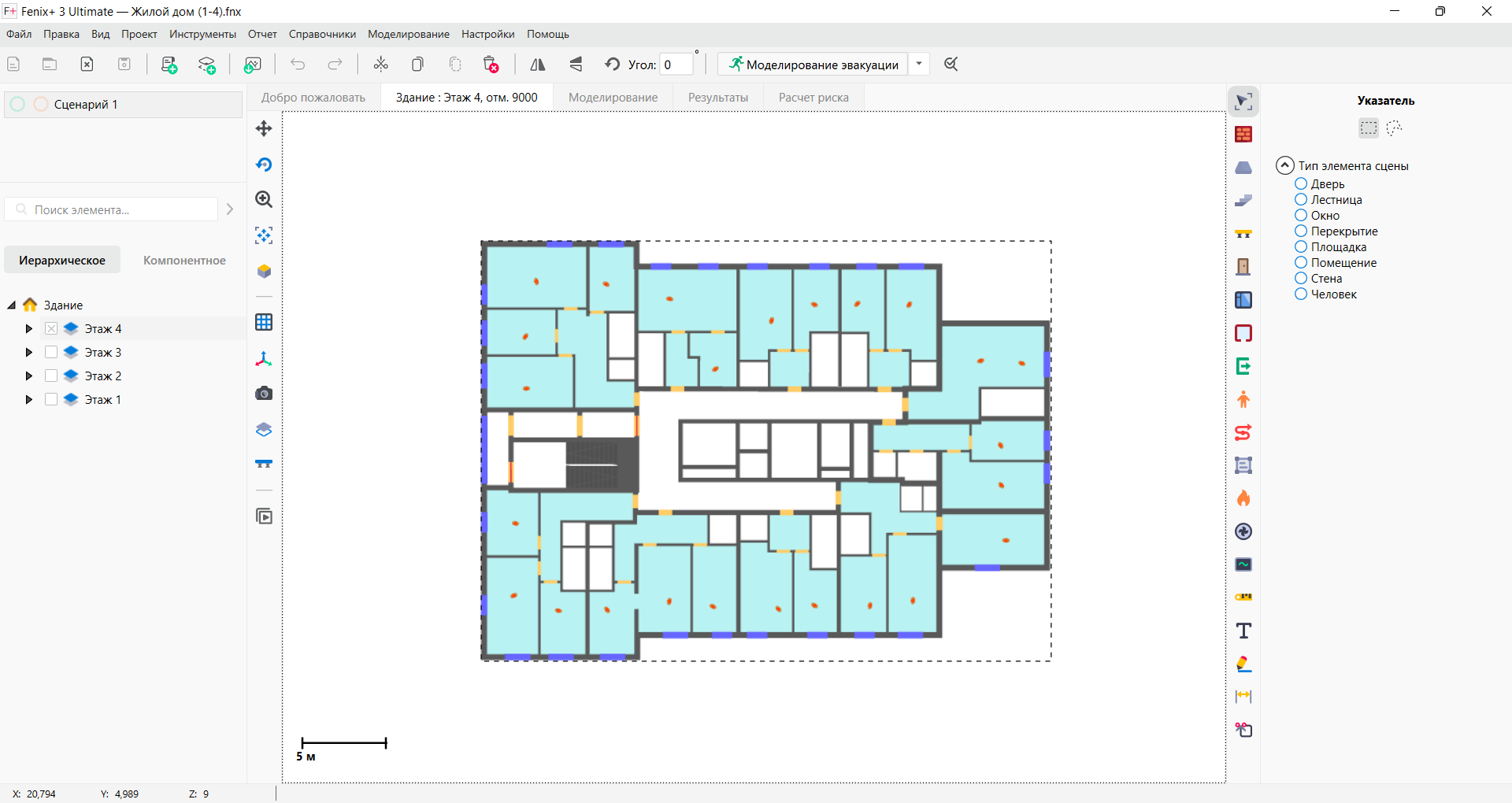
For this, do the following:
- Right-click the name of a building in the scenario browser and select Import in the context menu.
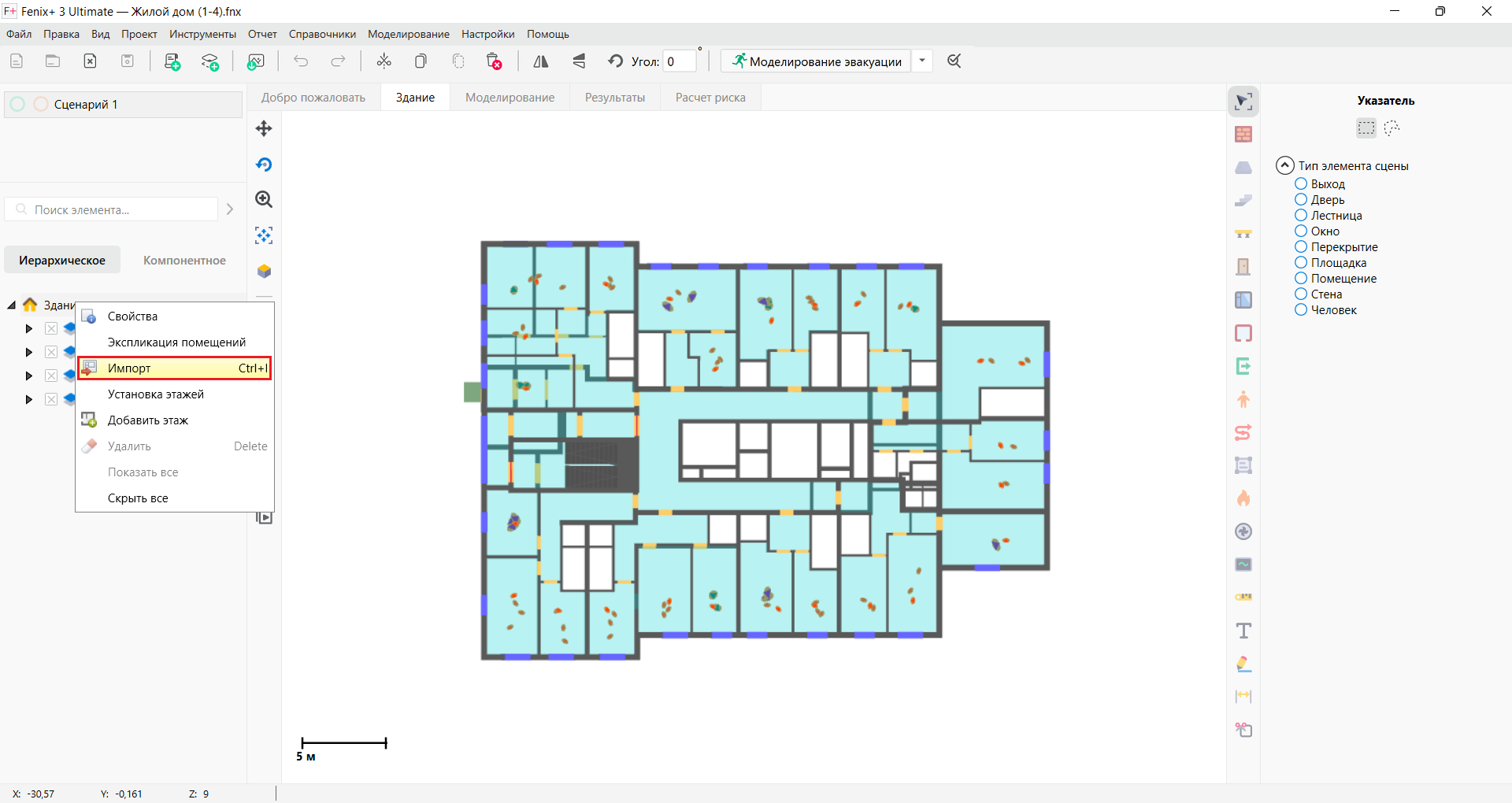
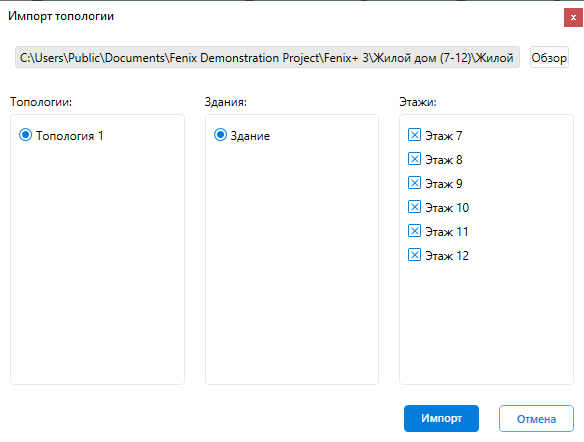
- In the window that opens, specify the location of the project file from which you need to import the floors. The topology import window opens.
 {width=60%}
- Since the project contains only one scenario, and the all floors need to be imported, leave all selected elements unchanged and click the Import button.
The application performs the import of the selected topology. The topology is imported into the current scenario.
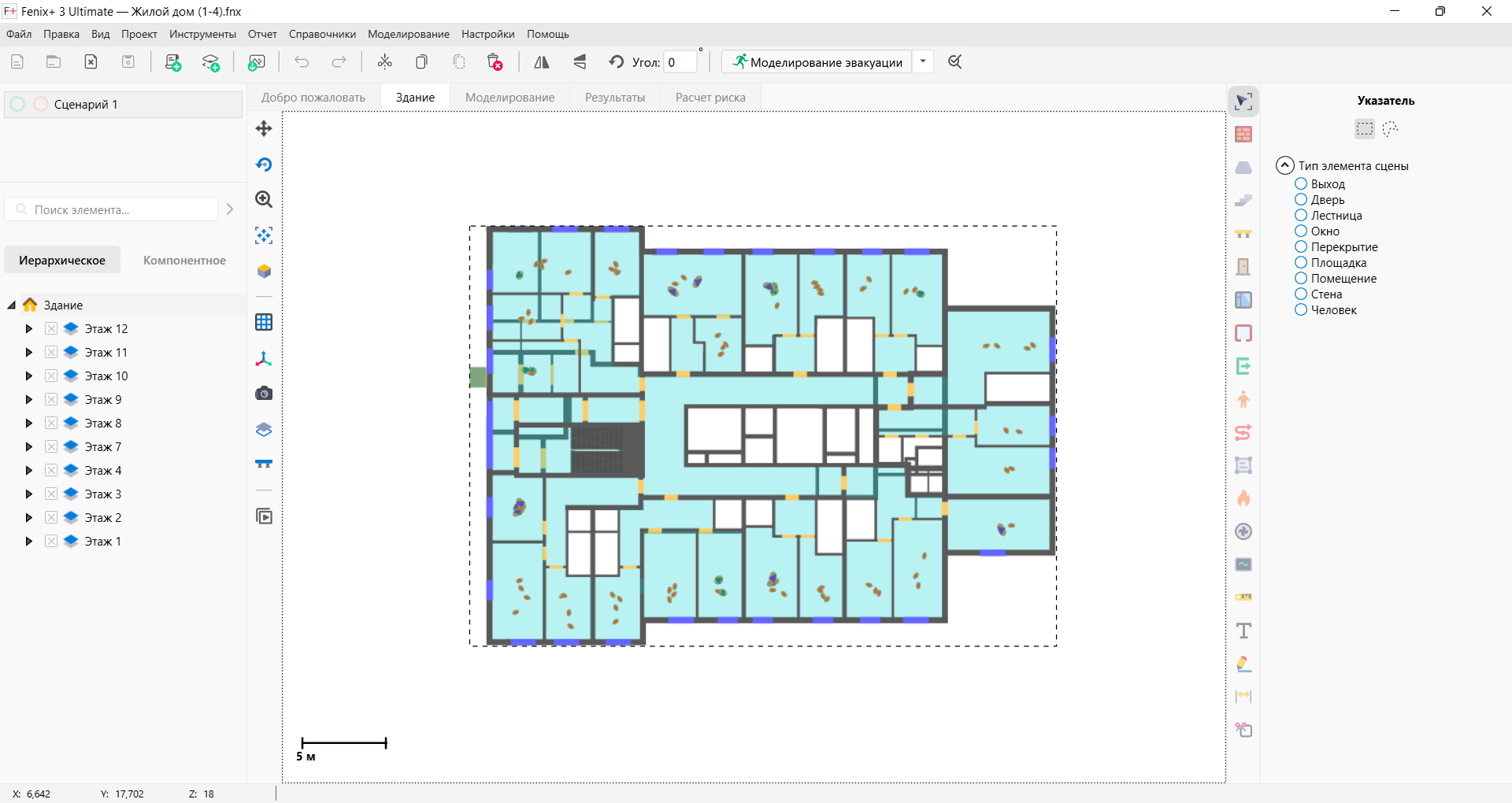
- Repeat steps 1-2. The topology import window opens.
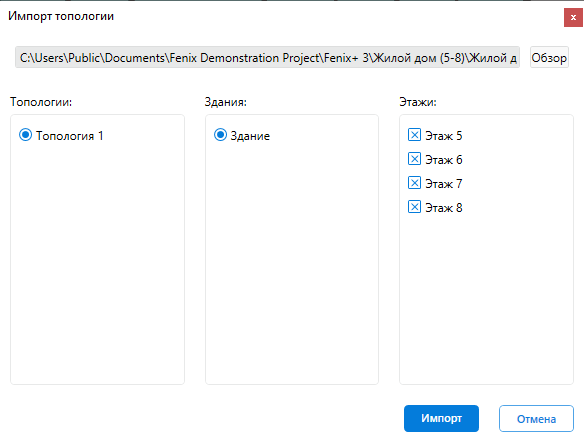 {width=60%}
- You have already imported floors 7 and 8 earlier (in step 3), uncheck the boxes next to the names of these floors and click the Import button.
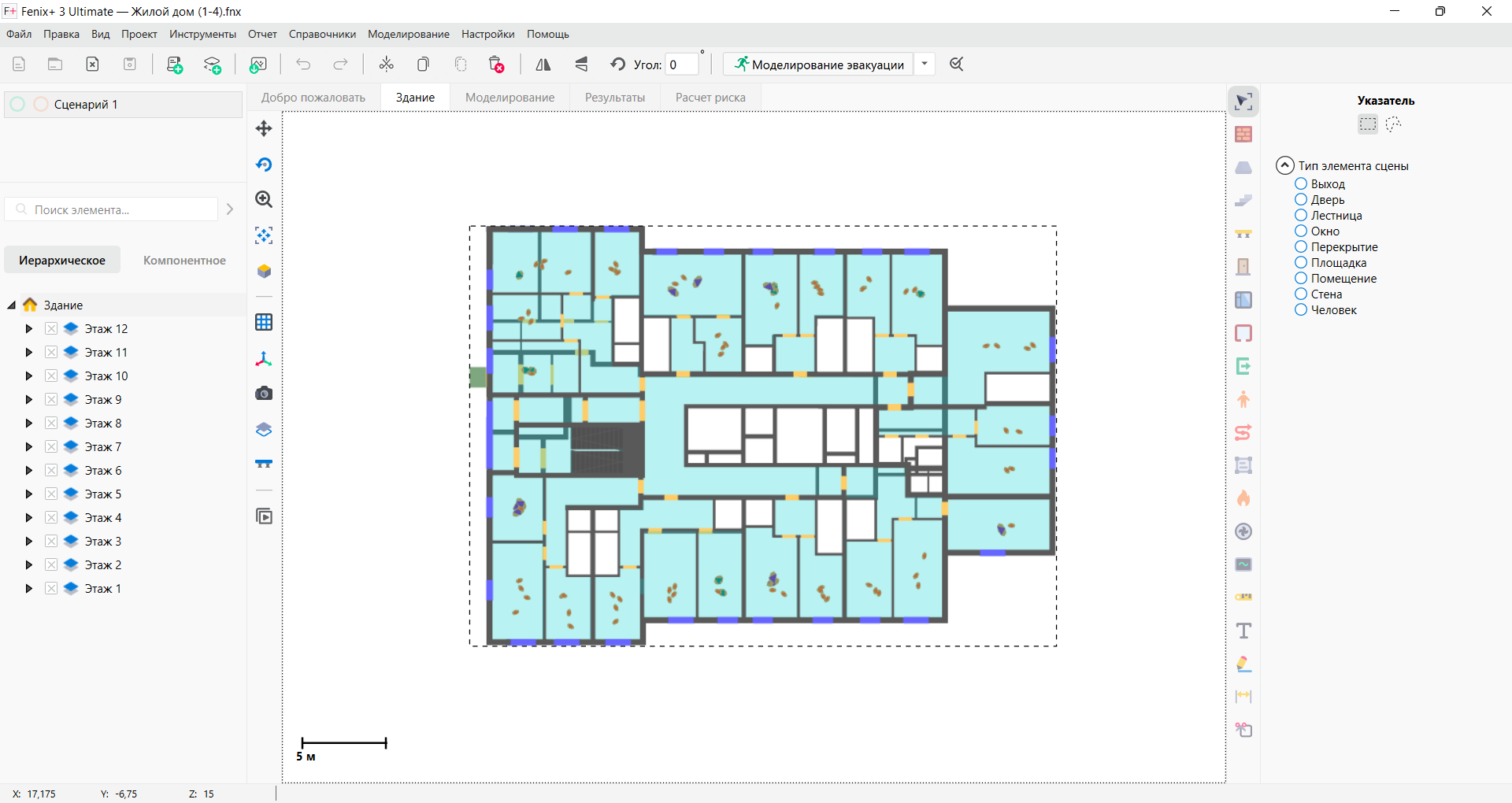 {width=80%}
Note that only floor topologies are imported. Fire and evacuation components are not imported. Imported floors and objects placed on them retain their properties.